Find a Lost Apple Watch: Play Sound, Lost Mode, What Works
Apple Watch is in Find My like any Apple device. Here is what each option does, when GPS-only models fall short, and what thieves get when they steal one.
On this page 9 sections
- How to access Find My for your Apple Watch
- Play Sound: the first option to try
- GPS-only vs cellular: the location gap that surprises people
- Lost Mode: what it does and when to use it
- Directions and the precision question
- What thieves actually get: Activation Lock reality
- When Find My shows nothing
- Before you accept it as gone: a practical checklist
- Prerequisites: what has to be set up before the loss
Yes, you can find a lost Apple Watch using Find My, the same system Apple uses for iPhones, iPads, and AirTags. The Watch shows up in the Devices tab of the Find My app, and you get the same three core options: see its location on a map, play a sound to coax it out from behind the couch cushion, or lock it remotely with Lost Mode. The catch is that what Find My can actually report depends heavily on which Watch model you have and whether it can reach a network on its own.
Key Takeaways
- Apple Watch appears in Find My under Devices on any iPhone or at icloud.com/find.
- Play Sound is the fastest fix for a Watch lost at home; it chirps until dismissed.
- Cellular models (LTE) can report a live location even when the paired iPhone is not nearby. GPS-only models require the paired iPhone or a known Wi-Fi network to update.
- Lost Mode locks the Watch with Activation Lock and shows a contact message on the face.
- A dead battery stops all location updates. Unlike iPhones with the U1 chip, Apple Watch has no offline Bluetooth beacon mode.
- Activation Lock makes a stolen Watch nearly impossible to resell or re-pair.
How to access Find My for your Apple Watch
The entry point is the Find My app on any iPhone or iPad signed into the same Apple ID. Tap Devices at the bottom of the screen and scroll to your Watch. Alternatively, go to icloud.com/find in any browser, sign in with your Apple ID, and click All Devices to pick the Watch from the dropdown.
If the Watch is not in the list at all, that means it was never paired with an iPhone under your Apple ID, or it was already erased and removed from the account. A Watch that appears greyed out with a timestamp is offline but still associated with your account. That is the most common state when a Watch has been lost or the battery has run down.
Play Sound: the first option to try
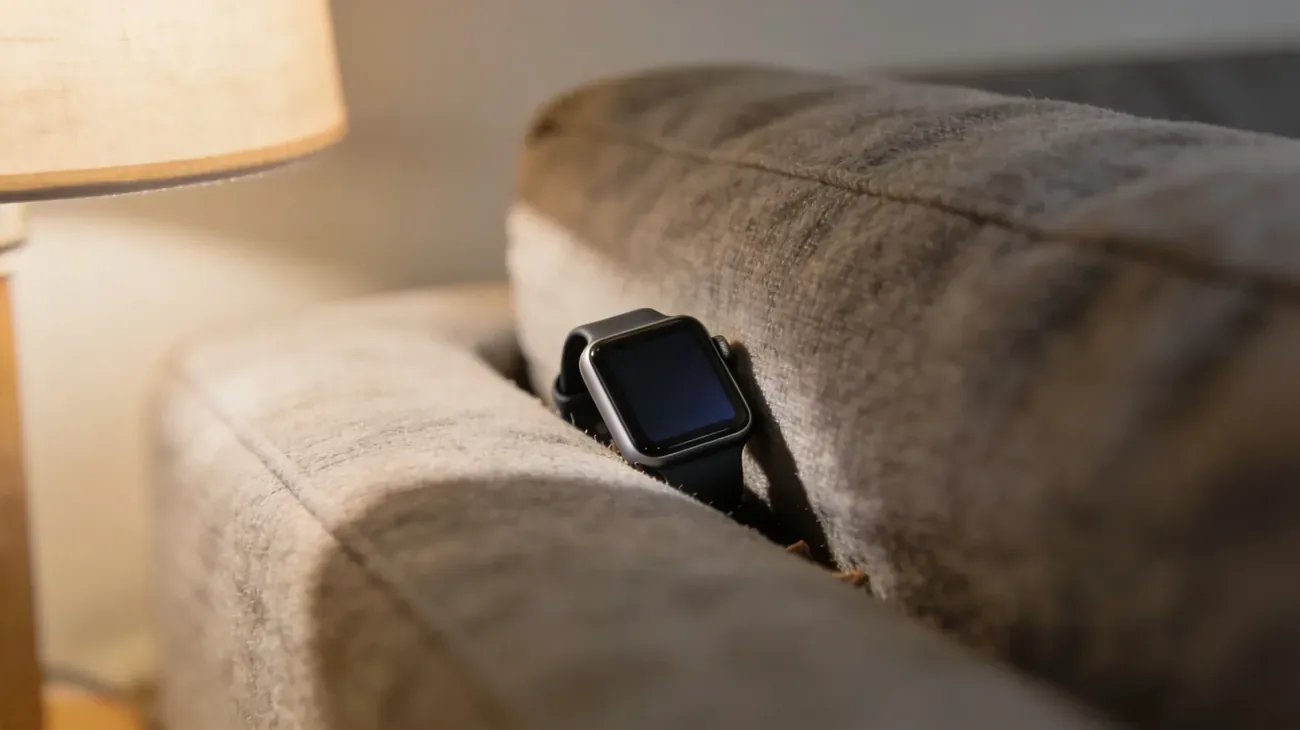
Play Sound is the right move for any Watch that might still be nearby. Tap the option in Find My, and the Watch immediately starts emitting a high-pitched chirping tone regardless of whether it is on silent. The sound repeats until someone physically dismisses it on the Watch screen or your wrist. This is the best tool for a Watch that slipped under furniture, ended up in a jacket pocket, or fell into a bag during a commute.
The requirement is that the Watch must be powered on and connected to Wi-Fi or its paired iPhone. If it is in range but offline, the ping will not arrive until the Watch reconnects. Find My queues the command and sends it automatically once the Watch is back online. You can leave the app; the command stays queued.
GPS-only vs cellular: the location gap that surprises people
This is the single most important thing to understand before you panic about a Watch that shows an old location.
| Watch model type | Can report location away from paired iPhone? | Offline / battery dead behavior |
|---|---|---|
| Apple Watch with cellular (LTE) | Yes (connects via its own SIM or eSIM to any cell network) | Last-known location at time of signal loss |
| Apple Watch GPS-only (no LTE) | No (requires paired iPhone in range, or a known Wi-Fi network) | Last-known location at time of last sync |
| Any Apple Watch (powered off or dead battery) | No | Last-known location only; no Bluetooth beacon mode |
A cellular Watch behaves like a small iPhone in terms of Find My. It has its own connection to the network and updates its location independently. If you left a cellular Watch at a friend’s apartment and your iPhone is across the city, Find My still shows the Watch’s real position.
A GPS-only Watch can only report when it is near its paired iPhone or a known Wi-Fi network. If you lost it on a trail run (exactly the scenario where you might be wearing it instead of carrying a phone), Find My will likely show the last location it synced before you set out, which could be your home or wherever you were before the run. That is not a bug; it is the hardware limitation of a Watch that relies on its iPhone for cellular connectivity.
For the offline-finding network that works on iPhones, see the complete Find My iPhone guide for details on how the Bluetooth relay system works. Apple Watch does not participate in that network the same way, which is why the dead-battery state ends tracking.
Lost Mode: what it does and when to use it
Lost Mode is the right escalation when you cannot retrieve the Watch yourself within an hour or two. Enabling it does four things simultaneously:
- Locks the Watch. A passcode is required to use it. If no passcode was set before, you set one during the Lost Mode activation flow.
- Enables Activation Lock. The Watch is cryptographically tied to your Apple ID. A factory reset does not clear Activation Lock; the Apple ID credentials are required to re-pair it.
- Displays a contact message on the Watch face. You enter a phone number or message when setting up Lost Mode, and it shows on screen so a finder can contact you.
- Suppresses notifications. Incoming calls and messages no longer appear on the Watch face, protecting your privacy.
Lost Mode does not prevent the Watch from updating its location. If the Watch reconnects to a network, Find My continues to report its position. You get a notification the moment it comes back online.
To activate Lost Mode: Find My app → Devices → your Watch → Mark As Lost. You can also do this from icloud.com/find. Once activated, a “Pending” label appears in Find My until the Watch receives the command, at which point it switches to “Lost.”
Directions and the precision question
Tapping Directions in Find My opens Apple Maps and navigates you to the Watch’s last reported coordinates. The accuracy of those coordinates varies:
- GPS fix (the Watch was outdoors and moving during its last update): typically within 5 to 10 meters.
- Wi-Fi positioning (the Watch was indoors): 15 to 50 meters, depending on the density of known networks in the area.
- Cellular triangulation (urban area, LTE model): 50 to 300 meters.
Do not expect Directions to walk you to the exact spot. Use it to get to the right building or block, then switch to Play Sound once you are close. The combination of coarse directions plus the audio ping is how most in-range Watches get recovered.
If the Watch is showing a location that is clearly wrong (across town, in a body of water), that almost always means the location is stale and the Watch has gone offline since. The timestamp in Find My tells you when the last update was received.
What thieves actually get: Activation Lock reality
Activation Lock makes a stolen Apple Watch nearly worthless to a thief. The lock engages automatically when the Watch is paired with any Apple ID. A stolen Watch that is factory-reset via Settings still requires the original Apple ID and password during the setup process. Without those credentials, the Watch sits at a pairing screen it cannot pass.
Apple has trained authorized service centers to refuse service on a Watch that shows Activation Lock without owner authentication. The result is that a stolen Apple Watch has no resale value in legitimate markets and is difficult to monetize even on grey markets.
If your Watch was stolen, enable Lost Mode immediately, then file a police report. Share the Find My location history with the responding officer. The timestamps and coordinates are useful evidence even if the Watch shows offline. Do not attempt to retrieve a stolen Watch from a person yourself.
When Find My shows nothing
A few situations produce a blank or unhelpful result in Find My:
- The Watch was never signed in to an Apple ID. A Watch purchased secondhand may still have the previous owner’s Apple ID active. If you cannot locate it in Find My at all, verify under Settings → General → About → scroll to Owner on the Watch itself (if you can access it).
- Find My was disabled before the loss. Find My requires the setting to be on in the Watch’s companion iPhone app under My Watch → General → Find My Watch (or through the Watch app settings for newer watchOS). If it was off, there is no location history.
- The Watch was removed from your account. Once removed, Activation Lock is cleared and the Watch disappears from Find My. Only do this intentionally when selling.
For cases where a shared-location setup is involved, similar troubleshooting applies as with the Find My Friends location not updating issue. A stale timestamp and a grey dot usually mean the device lost its network connection, not that Find My failed.
Before you accept it as gone: a practical checklist
Run through this before escalating to Lost Mode or filing a report.
- Check icloud.com/find from a browser. Sometimes the Find My app on one device has a stale view that refreshes correctly on the web.
- Pull down to refresh the Devices list in the app. Find My does not always poll automatically.
- Ask anyone who was with you whether they saw the Watch or whether it might be at a location you visited. The last-known location in Find My is a useful anchor to start that conversation.
- Check Bluetooth accessories. If you have an Apple Watch charger or case with a speaker, a misplaced Watch will sometimes be found simply by scanning the charger location.
- Check Family Sharing. If the Watch is on a family member’s account rather than yours, it appears under their Apple ID in Find My, not yours. This catches a surprising number of “lost” kids’ Watches.
If a lost AirPods case has also gone missing in the same incident, the guide to finding a lost AirPods case covers the same Find My logic applied to cases with and without built-in chips. The GPS-only vs connected limitation parallels the Watch situation closely.
Prerequisites: what has to be set up before the loss
Find My works only if these conditions were true before the Watch went missing. You cannot enable them after the fact on a Watch you cannot physically access.
- Apple ID signed in. The Watch must be paired and signed in to an Apple ID under Settings on the Watch or through the companion iPhone app.
- Find My enabled. On the iPhone paired to the Watch: Watch app → your Watch → General → Find My Watch must be on.
- Internet connectivity at the time of loss. For a GPS-only Watch, that means the paired iPhone was nearby. For a cellular Watch, any available cell network suffices.
If all three conditions were met and Find My still shows nothing, the most likely explanation is that the battery was dead when the Watch was lost, and it has not yet been found, charged, or powered on by anyone. The Watch will appear in Find My the moment it boots and connects.
Questions & answers
Things readers ask about this
7 questions · updated Jun 2026